Documents
Markdown to an ebook PDF, with a cover and a real contents page
Every Markdown converter hands back the same plain document. Here is what is actually missing, and the four ways to get a cover, contents page and clean pagination.
7 min read Published
You wrote the whole thing in Markdown. You ran it through a converter. You got back a PDF where the text is correct and everything else is missing.
This is not a bad converter. It is the expected result, and understanding why makes the fix obvious.
The short answer: nothing in Markdown describes a cover, a page break or a table of contents, so no converter can generate them from your file alone. You need a tool that takes responsibility for those parts separately, whether that is a LaTeX template you maintain or a tool that composes them for you.
Markdown has no pages
Markdown describes structure: this is a heading, this is a list, this is a table. It says nothing about a page, because it was designed to become a web page, and web pages do not have page breaks.
That means four things a finished document has cannot be derived from your Markdown at all:
- A cover. There is no syntax for one. Your
# Titleis a heading, and a converter renders it as a heading. - A contents page with page numbers. Page numbers only exist after something has decided where the pages break. A converter that renders straight through has no page numbers to list.
- Deliberate pagination. Without layout rules, a page break lands wherever the text ran out, which is how you get a heading alone at the bottom of a page and a table cut through the middle of a row.
- Consistent branding. Nothing in the file says what your typeface is.
So the question is not which converter to use. It is which tool takes responsibility for the parts Markdown does not describe.
Route 1: Pandoc with a LaTeX template
Pandoc is the serious answer, and it is free. With a LaTeX engine behind it, it paginates properly, generates a real table of contents with correct page numbers, and handles widow and orphan control the way typesetting software should.
pandoc book.md -o book.pdf \
  --toc --toc-depth=2 \
  --pdf-engine=xelatex \
  -V geometry:a4paper,margin=25mm
Use it when: you want full control, you are producing something long, and you do not mind that the design is now a LaTeX template you maintain.
The cost: LaTeX. Getting a cover you like, brand fonts loading correctly and tables behaving takes real time, and the error messages are famously unhelpful. People who like this route like it a lot. Most people bounce off it.
Route 2: a static site generator or Markdown book tool
Tools built for technical books take a folder of Markdown and produce a print-ready PDF with chapters, a contents page and page numbers, usually sized for print-on-demand.
Use it when: you are publishing an actual book, especially to Amazon KDP or similar, and the technical-manual look is what you want.
The cost: they are opinionated toward books. If what you have is a 15-page lead magnet or a client report, you are fighting a tool that wants a manuscript, and the styling options tend to be a small set of themes rather than your brand.
Route 3: paste it into a design tool
Copy the text into Canva, InDesign, Figma or Google Docs and lay it out.
Use it when: the document is short, visual, and design is most of its value. A one-page checklist belongs here.
The cost: every page is a page you place by hand, and the contents page is a list you maintain manually. This is fine at four pages and miserable at thirty, which is exactly the length where a contents page starts to matter. It also does not survive edits: change a sentence on page 3 and you re-check every page after it.
Route 4: a tool that paginates and composes for you
This is what Unplain does. You bring the Markdown, it produces the document.
Paste the Markdown or upload the .md file, pick a brand, and the export
contains:
- a composed cover from your title and subtitle
- a contents page built from your headings, with page numbers that stay correct
- text reflowed across pages, with paragraphs, lists and tables breaking at clean boundaries
- page numbers and footers throughout
- your colors and fonts applied to all of it, saved as a Brand Theme for the next document
- a closing call-to-action page with a working link
Then you can edit the text in place without any of the above coming apart. Change a paragraph and the pagination, the page numbers and the contents page update themselves.
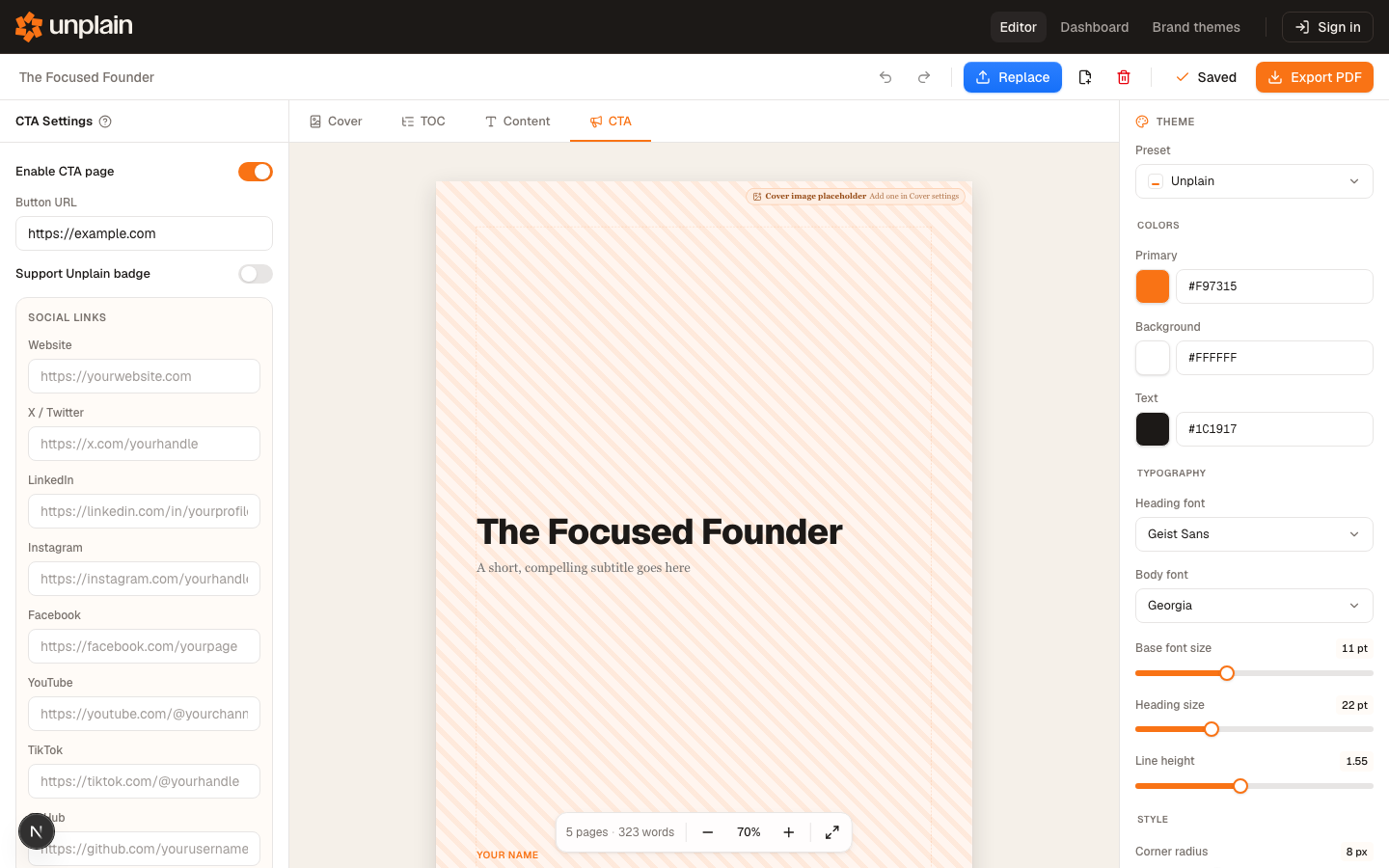 The closing call-to-action page is a settings panel, not a paragraph you paste into the manuscript: one button URL and it’s on every export.
Use it when: you produce documents like this more than once and want them to match, and you would rather not own a LaTeX template.
The cost: PDF only, no EPUB, no Kindle. And it will not write the content.
What survives the trip
If you are writing Markdown with a designed export in mind, a few habits help regardless of route:
- Use heading levels honestly. The contents page is built from them, so an
##used for emphasis rather than structure shows up as a chapter. - Keep one
#for the title. Multiple H1s produce a contents page that reads like several documents stapled together. - Write tables as tables. Real Markdown tables can be laid out and split across pages at row boundaries. A table you faked with spaces cannot.
- Do not hand-number your sections. Anything that paginates will renumber for you, and hand-numbering guarantees a mismatch the first time you insert a section.
- Put links in Markdown syntax. They stay live and clickable in the exported PDF, which matters if the document is a lead magnet with a call to action.
The short version
| You want | Use |
|---|---|
| Full control, and LaTeX does not scare you | Pandoc with a template |
| A print-on-demand technical book | A Markdown book tool |
| A short, visual, design-led piece | A design tool, by hand |
| The same designed document, repeatedly, on brand | Unplain |
| EPUB or Kindle output | Pandoc or Calibre |
If the last row is you, stop reading here. If the fourth row is you, the examples are documents of 19 to 32 pages produced exactly this way, and you can read any of them in full to see how the pagination and contents pages behave at length.
Frequently asked questions
Why does my Markdown to PDF export look unfinished?
Because the converter only has your text to work with. A cover, a contents page with page numbers, and page breaks in sensible places are not expressed anywhere in Markdown, so a plain converter has nothing to generate them from. It renders your headings as larger text and stops there.
Can I get a table of contents with page numbers from Markdown?
Not from a plain converter. Markdown has no concept of a page, so page numbers only exist once something has laid the document out. You need a tool that paginates first and then builds the contents from where the headings actually landed, which is what Pandoc with a LaTeX template does, and what Unplain does automatically.
Does Unplain support full Markdown?
Yes, including headings, lists, tables, links, bold and italic. Large tables are rendered automatically and split across pages at row boundaries rather than being cut mid-row. You can also upload a .docx, .txt or .md file, or paste text straight in.
Does Unplain export EPUB or Kindle files?
No. Unplain exports PDF only. If you need EPUB or a Kindle-ready file, Pandoc or Calibre is the right tool, and both are free.
Do I need to write the cover myself?
No. Unplain composes the cover from your title and subtitle against your brand, and can generate a cover image with AI if you want one. You can also upload your own image. The layout around it is composed either way.